
Install SchoolOpsPro as an app
Put SchoolOpsPro on your phone's home screen. It opens full screen like any app, with its own icon, and you are back in one tap. No app store needed, and it's free.
✅ SchoolOpsPro is already installed on this device.
On an iPhone or iPad (Safari)
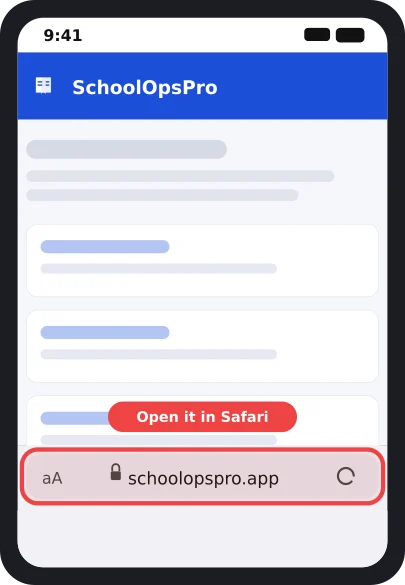
1. Open SchoolOpsPro in Safari
Go to schoolopspro.app in Safari (the blue compass icon). On an iPhone, installing only works from Safari.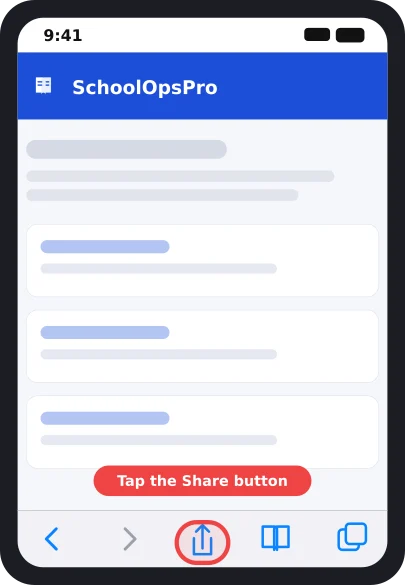
2. Tap the Share button
It is the square with an arrow pointing up. It is at the bottom of the screen (on an iPad it is at the top).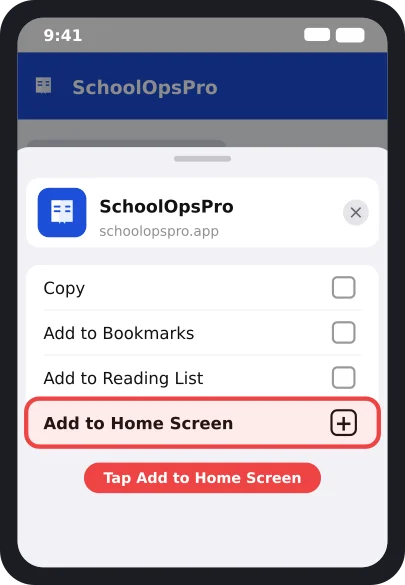
3. Tap Add to Home Screen
Scroll down the list if you don't see it right away.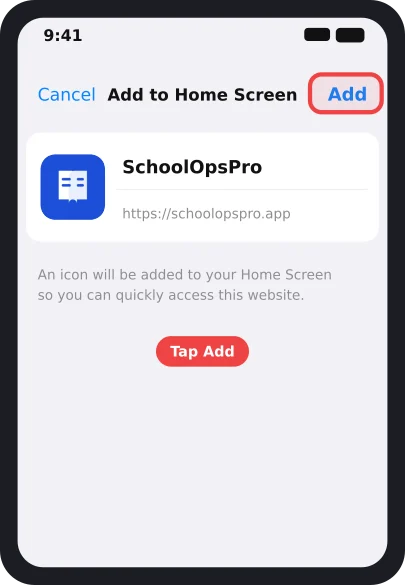
4. Tap Add
You can change the name if you like. Then tap Add in the top right corner.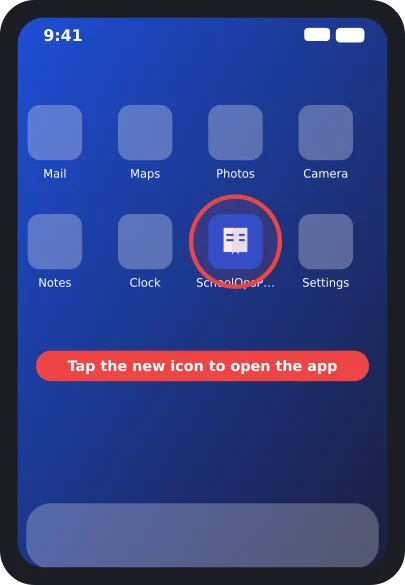
5. Open it from your home screen
Look for the SchoolOpsPro icon. It opens full screen, just like an app. Next time, just tap it.
On an Android phone (Chrome)
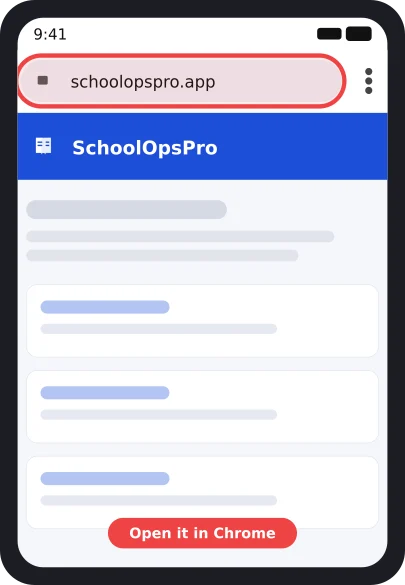
1. Open SchoolOpsPro in Chrome
Go to schoolopspro.app in Chrome.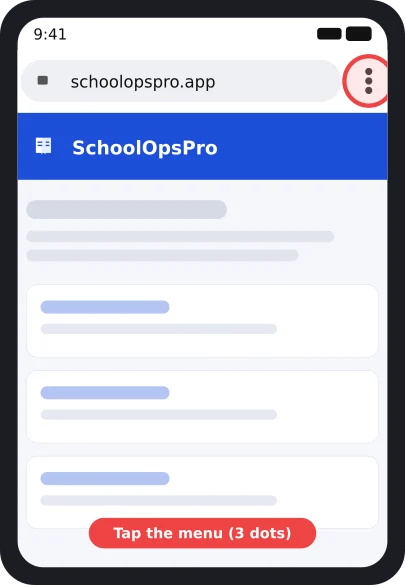
2. Tap the menu
It is the three dots in the top right corner.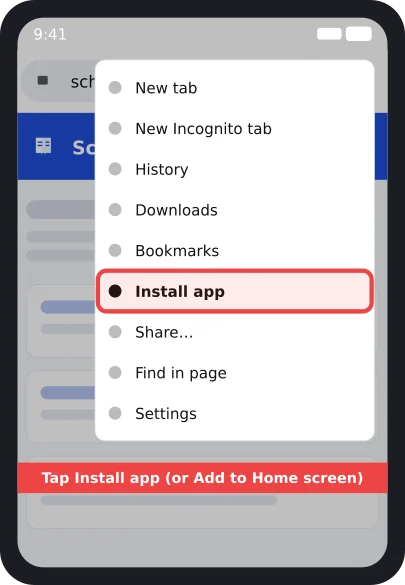
3. Tap Install app
On some phones it says Add to Home screen instead. Choose either one.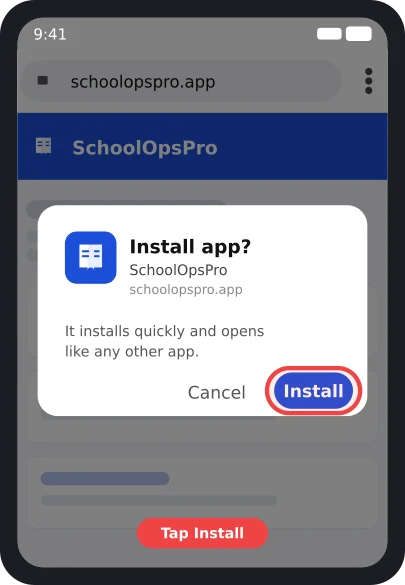
4. Tap Install
Confirm in the box that appears. Android adds SchoolOpsPro to your home screen and app list.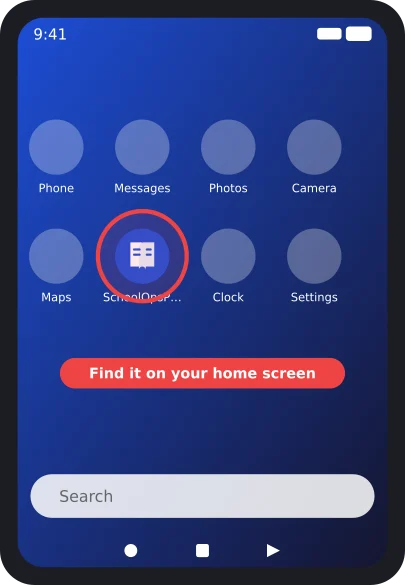
5. Find it on your home screen
Tap the SchoolOpsPro icon to open it. It runs full screen, like any other app.
Don't see Install app or Add to Home Screen? Make sure you are using Safari on an iPhone or Chrome on an Android phone, not a different browser or a link opened inside another app. On a computer, look for the install icon at the right end of the address bar in Chrome or Edge.